Theme Code & Liquid Safety
Shopify Theme Backup & Version Control
A Shopify theme backup is an encrypted archive of your storefront Liquid templates, CSS styles, JavaScript assets, and JSON configuration files. Woonic provides automated daily theme backups with side-by-side code diffing and instant 1-click single file restoration.
7-day risk-free trial • Fully compatible with Online Store 2.0 & Dawn themes
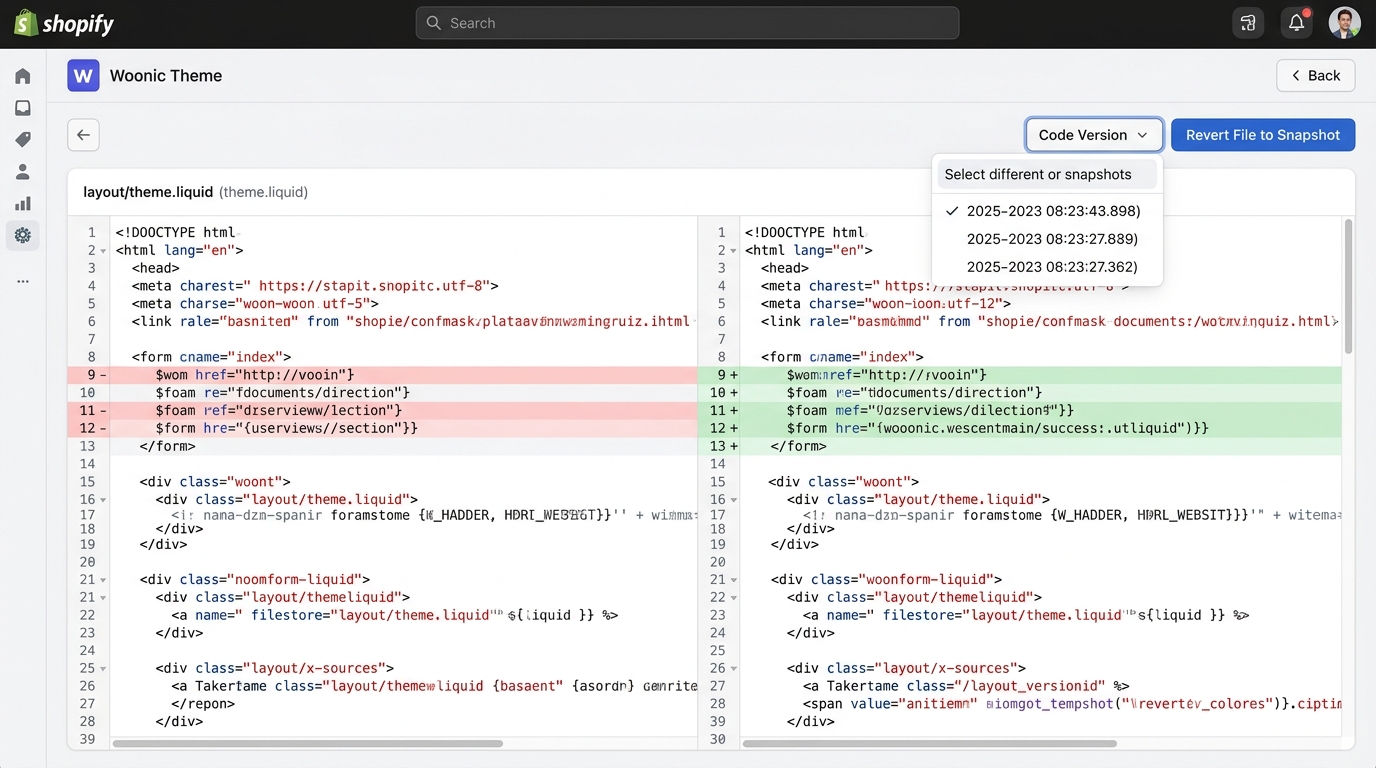
Figure 2.1: Woonic Theme Browser displaying side-by-side Liquid file diffing with 1-click revert capability.
Why do Shopify themes break?
Direct Answer:
Shopify themes break primarily due to third-party app code injections, manual developer syntax errors, conflicting CSS stylesheet modifications, or corrupted settings_data.json files. Because multiple apps and contractors frequently edit production theme code simultaneously, unmonitored edits quickly create checkout bugs and mobile layout collapses.
When a merchant clicks "Install" on an app offering reviews, currency conversion, or upsell popups, the app often injects Liquid snippets and JavaScript tags directly into layout/theme.liquid. When that app is uninstalled, Shopify's API disconnects, but the foreign code remains trapped inside your theme files as "ghost code."
Manual Theme Downloads vs. Automated Woonic Snapshots
| Feature | Manual Theme Export (.zip) | Woonic Automated Theme Backup |
|---|---|---|
| Backup Frequency | Manual (requires manual click each time) | Automated daily on schedule |
| Granular Single-File Revert | No (requires re-uploading whole theme) | Yes (revert 1 Liquid snippet in 1-click) |
| Visual Code Diffing | Requires local Git or external diff tool | Built-in side-by-side color-coded diffs |
| Historical Retention | Limited to your local computer disk | Up to 1-year encrypted AWS S3 retention |
| Live Storefront Impact | None | Zero (runs via server GraphQL APIs) |
How to restore a broken Shopify theme file in 3 steps
- Open the Woonic Theme Browser: Access Woonic inside your Shopify admin dashboard and click on the Theme Browser tab.
- Select Timestamp & Compare Code: Choose your current live theme version and compare it with any previous daily snapshot to view the line-by-line diff.
- Click "Revert File to Snapshot": Woonic will instantly replace the corrupted file in your live theme with the verified original code without affecting any other theme files.
Theme Backup FAQ
Theme Backup Frequently Asked Questions
In your Shopify Admin, navigate to Online Store > Themes. Click the three dots (...) next to your active theme and select 'Duplicate' to create an unpublished copy in your library, or select 'Download theme file' to receive a .zip archive via email. Note that manual zip files do not provide visual diffing or automated version histories.
Woonic backs up every file in your theme directory: layout templates (such as theme.liquid), sections, snippets, config/settings_data.json, locales translation files, and assets (CSS, SCSS, JavaScript). Each backup is encrypted and preserved with timestamped version tags in AWS S3.
Yes. With Woonic's granular restore and Theme Browser, you can inspect the exact file (e.g., snippets/cart-drawer.liquid) and restore just that single file to a previous clean state without overwriting any other styling or customization you've made to the rest of the theme.
Many third-party apps modify layout/theme.liquid or create custom snippets. If an uninstalled app leaves behind broken script tags, Woonic's visual theme diff visualizer flags every line that was added, modified, or removed, allowing you to cleanly purge unwanted code in seconds.
Never lose your custom theme edits again
Install Woonic on your store to activate automated daily theme backups with built-in version diffing.
Start Free Trial on Shopify App Store →