
Disaster Recovery Guide
How to Restore a Deleted Shopify Product in 1 Click
Restoring a deleted Shopify product means recovering its title, description, SKU, pricing, images, and custom metafields back to your live storefront. Woonic provides automated daily snapshots so you can recover any accidentally deleted product with one click.
Instant 1-click restore • Retains metafields, variants, and image links
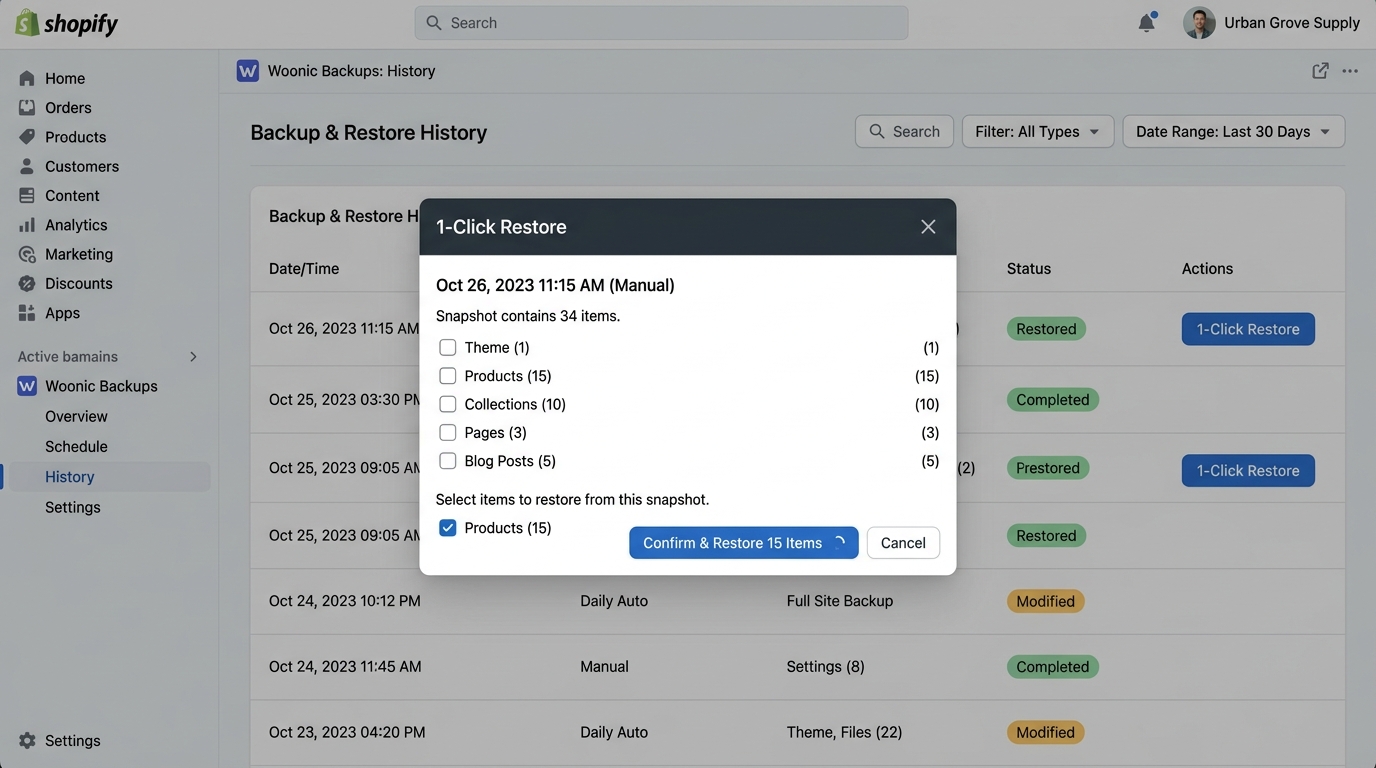
Figure 6.1: Woonic 1-Click Restore modal selecting individual deleted products for instant live recovery.
Is there a recycle bin or undo button in Shopify for deleted products?
Direct Answer:
No. Shopify does not include a recycle bin, trash folder, or undo button for deleted products. Once you click "Delete product" and confirm in the Shopify admin, the product record and its associated variant IDs are immediately and permanently erased from Shopify's production servers.
Accidental product deletion is one of the most common causes of merchant panic. It frequently happens when a team member attempts to delete an out-of-stock variant but accidentally deletes the parent product, or when a bulk inventory synchronization app malfunctions during a scheduled update.
Comparison: Product Recovery Methods in Shopify
| Attribute | Shopify Admin (Native) | Re-importing CSV File | Woonic 1-Click Restore |
|---|---|---|---|
| Undo / Recovery | Impossible (no trash bin) | Manual CSV upload | 1-Click instant recovery |
| Metafield Preservation | None | Lost (standard CSV ignores) | 100% restored from snapshot |
| Image Re-linking | None | Only if hosted on public URLs | Fully restored with captions |
| Variant Barcodes & SKUs | None | Must match exact column formats | Preserved with original mappings |
| Time Required | N/A | 1 to 3 hours manual fixing | Under 10 seconds |
How to restore a deleted Shopify product with Woonic
- Open Woonic in Shopify Admin: Launch the Woonic application from your store's Apps menu.
- Go to History & Select Snapshot: Locate the backup snapshot timestamp taken immediately prior to the product's deletion.
- Select "Products" & Find the Item: Filter by product title or SKU in the granular restore modal.
- Click "Confirm & Restore": Woonic recreates the product, re-links images, restores metafield values, and republishes it to your active sales channels in seconds.
Product Restore FAQ
Frequently Asked Questions About Product Restoration
No. Shopify Support cannot restore individual deleted products. Under Shopify's shared responsibility model, deleting a product permanently removes it from the database across all edge nodes. There is no native recycle bin or undo button in the Shopify admin.
Partially, but with severe limitations. Re-importing a product from a previous CSV file creates a brand-new product record with a new internal ID. It will not restore custom metafields, historical reviews, original image ordering, collection sorting positions, or variant IDs needed by fulfillment centers.
Woonic preserves complete JSON representations of products including variant IDs, barcodes, SKU mappings, image URLs, and custom metafield definitions in AWS S3 snapshots. Clicking 'Restore Product' sends an authenticated GraphQL mutation to recreate the product exactly as it existed before deletion.
No. Woonic's granular restoration model restores only the specific targeted product record without modifying customer checkout states, cart sessions, or other catalog products.
Never lose a product listing to accidental deletion
Install Woonic today and safeguard your entire catalog with daily automated AWS S3 snapshots.
Start Free Trial on Shopify App Store →